Notice: Function _load_textdomain_just_in_time was called incorrectly. Translation loading for the hostinger-ai-assistant domain was triggered too early. This is usually an indicator for some code in the plugin or theme running too early. Translations should be loaded at the init action or later. Please see Debugging in WordPress for more information. (This message was added in version 6.7.0.) in /home/irttsubu/webartinfo.com/wp-includes/functions.php on line 6260
Web Tips and Tricks – Webartinfo | Creativity With Perfection
Notice: Function WP_Scripts::add was called incorrectly. The script with the handle "czgb-block-frontend-js" was enqueued with dependencies that are not registered: slick-carousel. Please see Debugging in WordPress for more information. (This message was added in version 6.9.1.) in /home/irttsubu/webartinfo.com/wp-includes/functions.php on line 6260
Posted on — Leave a comment

Top 10 Must-Visit Websites for UI/UX Designers: Your Ultimate Resource Guide

Top 10 Must-Visit Websites for UI/UX Designers: Your Ultimate Resource Guide

There are numerous websites that offer valuable resources, inspiration, and guidance for UI/UX design. Here are some of the best ones:

  1. Dribbble: Dribbble is a platform where designers showcase their work. It’s an excellent place to find inspiration, discover trends, and see what other designers are creating.
  2. Behance: Similar to Dribbble, Behance is another platform for designers to showcase their portfolios. It’s a great resource for finding inspiration across various design disciplines, including UI/UX.
  3. Nielsen Norman Group: NN/g is a leading UX research and consulting firm. Their website offers a wealth of articles, reports, and resources on UX best practices, usability, and user research.
  4. Smashing Magazine: Smashing Magazine is a popular online publication for web designers and developers. It features articles, tutorials, and case studies on UI/UX design, front-end development, and other related topics.
  5. UX Design Institute: This website offers courses and resources for those looking to become UX designers or improve their UX design skills. It’s a great place to learn about UX principles and methodologies.
  6. InVision Blog: InVision is a popular prototyping and collaboration tool for designers. Their blog covers a wide range of topics related to design, including UI/UX, prototyping, and design systems.
  7. UX Booth: UX Booth publishes articles written by industry professionals covering various aspects of UX design, research, and strategy. It’s a valuable resource for both beginners and experienced designers.
  8. Awwwards: Awwwards showcases the best websites from around the web, highlighting innovative design and creativity. It’s a great source of inspiration for UI/UX designers looking to stay updated on the latest trends.
  9. UX Collective: This publication on Medium features articles, case studies, and resources on UX design and research. It covers topics such as usability testing, interaction design, and user-centered design principles.
  10. Usability.gov: Usability.gov is a resource provided by the U.S. government’s General Services Administration (GSA). It offers guidelines, best practices, and case studies to help government agencies and others create user-friendly digital experiences.

These websites offer a wealth of information and inspiration for UI/UX designers at all levels of experience. Whether you’re looking for tutorials, case studies, design inspiration, or research-based insights, you’re likely to find valuable resources on these platforms.

You

Posted on — Leave a comment

Free Bootstrap Website Templates: Elevate Your Design Game for Free

Osahan Design Studio - Responsive Template

Introduction: In the ever-evolving landscape of web design, the availability of high-quality resources can make all the difference. Enter Bootstrap website templates—a game-changer for designers and developers alike. Offering a perfect blend of functionality, aesthetics, and flexibility, these templates have revolutionized the way websites are built. In this blog post, we delve into the world of free Bootstrap website templates and uncover the myriad benefits they bring to the table.

Unveiling the Power of Bootstrap: Bootstrap, developed by Twitter, has emerged as one of the most popular front-end frameworks for building responsive and mobile-first websites. Its extensive library of components and utilities streamlines the development process, enabling designers to create stunning websites with ease. With Bootstrap, the days of wrestling with complex CSS grids and media queries are long gone.

The Appeal of Free Templates: While premium Bootstrap templates certainly have their allure, the availability of free alternatives is a game-changer for budget-conscious designers and entrepreneurs. These free templates offer a wide range of designs and functionalities, catering to various industries and niches. Whether you’re launching a portfolio website, an e-commerce store, or a corporate site, there’s a free Bootstrap template out there to suit your needs.

Benefits Beyond Cost: Beyond the obvious cost savings, free Bootstrap website templates offer several other advantages. Firstly, they serve as invaluable learning resources for budding designers, allowing them to study and dissect well-designed templates to understand best practices in web design. Additionally, these templates often come with extensive documentation and support, making them accessible even to novice developers.

Exploring Versatility: One of the standout features of Bootstrap is its versatility. Free Bootstrap website templates come in a plethora of styles, ranging from minimalist and sleek to vibrant and colorful. Moreover, they are highly customizable, allowing designers to tweak and tailor them to their specific requirements. With built-in support for custom CSS and JavaScript, the possibilities for customization are virtually limitless.

Conclusion: In conclusion, free Bootstrap website templates represent a democratization of web design, empowering designers of all skill levels to create professional-looking websites without breaking the bank. Whether you’re a seasoned developer looking to expedite your workflow or a newcomer eager to dip your toes into the world of web design, these templates offer a valuable resource. So why wait? Explore the wide array of free Bootstrap website templates available online and take your web design projects to new heights.

Osahan Design Studio – Bootstrap Responsive Website Template

Osahan Home Construction | Free Bootstrap Responsive Website Template

Restro – Bootstrap Responsive Restaurant Template

Posted on — Leave a comment

How To Get More YouTube Subscribers In 2024 By Making A Channel Subscribe Link

How To Get More YouTube Subscribers In 2024 By Making A Channel Subscribe Link

To get more YouTube subscribers in 2024, creating a channel subscribe link can be an effective strategy. Here’s a step-by-step guide on how to do it:

  1. Access Your YouTube Channel:
    • Log in to your YouTube account and go to your channel’s homepage.
  2. Navigate to YouTube Studio:
    • Click on your profile picture in the top-right corner and select “YouTube Studio” from the dropdown menu.
  3. Access Your Channel Settings:
    • In YouTube Studio, navigate to the left sidebar and click on “Settings” (the gear icon).
  4. Find Your Channel ID:
    • Under the “Channel” section, click on “Advanced settings.”
    • You’ll find your Channel ID listed under the “Channel settings” tab. Copy this Channel ID.
  5. Create the Subscribe Link:
    • Open a web browser and type the following URL, replacing “CHANNEL_ID” with your actual Channel ID: https://www.youtube.com/channel/CHANNEL_ID?sub_confirmation=1
    • For example, if your Channel ID is “UC1234567890”, your subscribe link will be: https://www.youtube.com/channel/UC1234567890?sub_confirmation=1
  6. Use the Link:
    • Share this subscribe link across your social media platforms, website, blog, email newsletters, and other promotional channels.
    • Encourage viewers to click on the link to subscribe to your YouTube channel directly.
  7. Optimize Your Call-to-Action (CTA):
    • When sharing your subscribe link, include a clear and compelling call-to-action (CTA) to encourage viewers to subscribe.
    • For example, you can say, “Subscribe to my channel for weekly updates on [topic]” or “Join our community by subscribing to our channel.”
  8. Promote Your Content:
    • Create high-quality and engaging content that provides value to your target audience.
    • Use SEO techniques to optimize your video titles, descriptions, and tags to increase visibility and attract more viewers.
    • Encourage viewers to like, comment, and share your videos, as engagement signals can help boost your channel’s visibility on YouTube.
  9. Engage with Your Audience:
    • Respond to comments, messages, and feedback from your viewers to build a strong relationship and community.
    • Host live streams, Q&A sessions, or interactive events to engage with your audience in real-time.
  10. Consistency is Key:
    • Stay consistent with your content schedule and upload new videos regularly to keep your audience engaged and coming back for more.

By creating a subscribe link and implementing these strategies, you can effectively grow your YouTube subscriber base in 2024. Remember to provide value, engage with your audience, and promote your content across various channels to maximize your growth potential.

Posted on — Leave a comment

How to Build A Simple Ionic 4 WordPress Client

Ionic 4 WordPress

As basically the whole internet is powered by WordPress, chances are high you have to interact with it at if a client approaches you for a mobile app.

Because by now WordPress includes a great REST API we can easily connect our Ionic app to the data it holds. While we previously used the wp-api-angular package, it seems like the plugin is basically dead and not maintained so let’s just use the API directly!

Setting up our Ionic WordPress App

We start with a blank Ionic 4 app and just create some additional pages and a service, so no further plugin needed!

ionic start pojectname blank --type=angular
cd pojectname
ionic g page pages/posts
ionic g page pages/post
ionic g service services/wordpress

Now we also need to include the module to make Http calls to the API so change your app/app.module.ts to:

import { NgModule } from '@angular/core';
import { BrowserModule } from '@angular/platform-browser';
import { RouteReuseStrategy } from '@angular/router';
 
import { IonicModule, IonicRouteStrategy } from '@ionic/angular';
import { SplashScreen } from '@ionic-native/splash-screen/ngx';
import { StatusBar } from '@ionic-native/status-bar/ngx';
 
import { AppComponent } from './app.component';
import { AppRoutingModule } from './app-routing.module';
 
import { HttpClientModule } from '@angular/common/http';
 
@NgModule({
  declarations: [AppComponent],
  entryComponents: [],
  imports: [BrowserModule, IonicModule.forRoot(), AppRoutingModule,
    HttpClientModule],
  providers: [
    StatusBar,
    SplashScreen,
    { provide: RouteReuseStrategy, useClass: IonicRouteStrategy }
  ],
  bootstrap: [AppComponent]
})
export class AppModule {}

Finally we need to setup our routing. We will have a list of WordPress posts and also a details page for one post. Therefore, connect the two pages we created before like this inside our app/app-routing.module.ts:

import { NgModule } from '@angular/core';
import { Routes, RouterModule } from '@angular/router';

const routes: Routes = [
  { path: '', redirectTo: 'posts', pathMatch: 'full' },
  { path: 'posts', loadChildren: './pages/posts/posts.module#PostsPageModule' },
  { path: 'posts/:id', loadChildren: './pages/post/post.module#PostPageModule' },
];

@NgModule({
  imports: [RouterModule.forRoot(routes)],
  exports: [RouterModule]
})
export class AppRoutingModule { }

Now we start at the list page and can navigate into the details of one specific blog post!

Creating the WordPress Service

Before we go into creating our views we setup the logic to retrieve all data. In our post we will simply make a call to get a list of posts, but you can get basically all data from the WordPress API like categories, tags, pages…

We will also limit our calls to only retrieve 5 posts at a time and also use the page parameter so we can later add some cool loading to our list.

Besides that we need to make another change if you want to know how many pages/results the API actually holds:
First, we have to add the observe key to our options and pass response as the value. But because this results in a Typescript error, we also need to have it as ‘body’ but maybe this will be fixed anytime soon.

Now the response of the API call holds more information than normally – it also contains the header fields! In this value we can find x-wp-totalpages and x-wp-total which are the actual information we need!

I also added a little conversion directly here so we can later access the image more easily which is buried deep down in the response otherwise. Same for the function to retrieve a single post of course.

All of this goes into your app/services/wordpress.service.ts like this:

import { Injectable } from '@angular/core';
import { HttpClient } from '@angular/common/http';
import { Observable } from 'rxjs';
import { map } from 'rxjs/operators';

@Injectable({
  providedIn: 'root'
})
export class WordPressService {
  url = `https://yourwordpresspage.com/wp-json/wp/v2/`;
  totalPosts = null;
  pages: any;
  constructor(private http: HttpClient) { }
  getPosts(page = 1): Observable<any[]> {
    let options = {
      observe: "response" as 'body',
      params: {
        per_page: '5',
        page: ''+page
      }
    };
    return this.http.get<any[]>(`${this.url}posts?_embed`, options).pipe(
      map(resp => {
        this.pages = resp['headers'].get('x-wp-totalpages');
        this.totalPosts = resp['headers'].get('x-wp-total');
        let data = resp['body'];
        for (let post of data) {
          post.media_url = post['_embedded']['wp:featuredmedia'][0]['media_details'].sizes['medium'].source_url;
        }
        return data;
      })
    )
  }
  getPostContent(id) {
    return this.http.get(`${this.url}posts/${id}?_embed`).pipe(
      map(post => {
        post['media_url'] = post['_embedded']['wp:featuredmedia'][0]['media_details'].sizes['medium'].source_url;
        return post;
      })
    )
  }
}

Just make sure you insert your own WordPress blog URL of course.

Now we got everything prepared and can use our functions to display our WordPress posts easily!

Listing Your WordPress Posts

We start with the list where we need to load our first handful of posts right in the beginning. At this point you also got access to the count and pages variable that we retrieved previously, but we don’t really use it a lot in here.

The reason is that we can also implement infinite scrolling inside our view which will automatically load new posts once we reach (or approach) the end of the list!

That’s also the reason why we keep track of the current page. You could also structure this with some sort of pagination and number of pages like you are used on a website, however this pattern here makes more sense for a mobile app.

Finally, if you reach the final page you should also disable the infinite loading like we do inside our loadMore() function.

Now go ahead and change your pages/posts/posts.page.ts to:

import { WordPressService } from './../../services/wordpress.service';
import { Component, OnInit } from '@angular/core';
import { LoadingController } from '@ionic/angular';

@Component({
  selector: 'app-posts',
  templateUrl: './posts.page.html',
  styleUrls: ['./posts.page.scss'],
})

export class PostsPage implements OnInit {
  posts = [];
  page = 1;
  count = null;
  constructor(private wp: WordPressService, private loadingCtrl: LoadingController) { }
  
  ngOnInit() {
    this.loadPosts();
  }

  async loadPosts() {
    let loading = await this.loadingCtrl.create({
      message: 'Loading Data...'
    });
    await loading.present();
    this.wp.getPosts().subscribe(res => {
      this.count = this.wp.totalPosts;
      this.posts = res;
      loading.dismiss();
    });
  }

  loadMore(event) {
    this.page++;
    this.wp.getPosts(this.page).subscribe(res => {
      this.posts = [...this.posts, ...res];
      event.target.complete();
      // Disable infinite loading when maximum reached
      if (this.page == this.wp.pages) {
        event.target.disabled = true;
      }
    });
  }
}

The view now just consists of a list of cards that make use of some data that is stored in the response. Just log it to your console and you will see a ton of information in there!

Some of those fields contain HTML characters, that’s why we sometimes use the innerHTML of elements and directly use the value which will then be displayed correctly.

If you want infinite loading, simply add it to the bottom of your page and attach the appropriate loading function. You can also define a text or loading indicator like described on the docs!

To build our simple view, go ahead and insert into your pages/posts/posts.page.html:

<ion-header>
  <ion-toolbar color="primary">
    <ion-title>Devdactic Blog</ion-title>
  </ion-toolbar>
</ion-header>
<ion-content padding>
  <div text-center *ngIf="count">Found {{ count }} posts</div>
  <ion-card *ngFor="let post of posts">
    <ion-card-header>
      <ion-card-title [innerHTML]="post.title.rendered"></ion-card-title>
      <ion-card-subtitle>{{ post.date_gmt | date }}</ion-card-subtitle>
    </ion-card-header>
    <ion-card-content>
      <img [src]="post.media_url">
      <div [innerHTML]="post.excerpt.rendered"></div>
      <ion-button expand="full" fill="clear" [routerLink]="['/', 'posts', post.id]" text-right>Read More...</ion-button>
    </ion-card-content>
  </ion-card>
  <ion-infinite-scroll threshold="100px" (ionInfinite)="loadMore($event)">
    <ion-infinite-scroll-content loadingText="Loading more posts...">
    </ion-infinite-scroll-content>
  </ion-infinite-scroll>
</ion-content>

We try to keep it simple so we just use the posts, but we could also easily load all pages and display them in a side menu for example!

Showing The WordPress Post Details

We also added a button to our cards below the excerpt with the routerLink in order to reach the details page with the ID of the post.

We could actually also pass the whole object to the next page using the state, but I still think using the ID approach is better as we don’t keep the information in the state and we actually got a URL to the post page that will work all the time, even with refresh!

For us this means we need to get the ID from the route snapshot and then retrieve the information for a single post using our service!

I just added a functionality to open the actual post page as well to make some us of the data of the post, but of course there’s a lot more you could do with the data.

For now simply change your pages/post/post.page.ts to:

import { WordPressService } from './../../services/wordpress.service';
import { Component, OnInit } from '@angular/core';
import { ActivatedRoute } from '@angular/router';
@Component({
  selector: 'app-post',
  templateUrl: './post.page.html',
  styleUrls: ['./post.page.scss'],
})

export class PostPage implements OnInit {
  post: any;
  constructor(private route: ActivatedRoute, private wp: WordPressService) { }
  ngOnInit() {
    let id = this.route.snapshot.paramMap.get('id');
    this.wp.getPostContent(id).subscribe(res => {
      this.post = res;
    });
  }
  openOriginal() {
    // Add InAppBrowser for app if want
    window.open(this.post.link, '_blank');
  }
}

Regarding the view of the details page we’ll also keep it simple and just use the image (like we did before, remember the media_url is a field we created in the service!) and the actual post content.

Again, to display the HTML correctly we need to use innerHTML which will render the tags correctly.

There’s really not a lot more to the page, so finish your simple Ionic WordPress app by changing your pages/post/post.page.html to:

<ion-header>
  <ion-toolbar color="primary">
    <ion-buttons slot="start">
      <ion-back-button defaultHref="/posts"></ion-back-button>
    </ion-buttons>
    <ion-title>{{ post?.title.rendered }}</ion-title>
  </ion-toolbar>
</ion-header>
<ion-content padding>
  <div *ngIf="post">
    <img [src]="post.media_url" [style.width]="'100%'">
    <div [innerHTML]="post.content.rendered" padding></div>
  </div>
</ion-content>
<ion-footer color="secondary">
  <ion-toolbar>
    <ion-button expand="full" fill="clear" (click)="openOriginal()">
      Open Original
    </ion-button>
  </ion-toolbar>
</ion-footer>

Another idea at this point would be to add social sharing which you very well might need if you want your articles to get shared directly from your WordPress app!

Conclusion

You don’t need a package to make use of the WordPress REST API – simply make calls to the endpoints like described in their reference and use that data directly inside your Ionic app!

There are so many ways to extend this and build Ionic apps powered with WordPress data – have you built one before or plan to do so?

You can also find a video version of this tutorial below.

Posted on — Leave a comment

Easiest Way To Convert HTML Pages Into React Components

Converts HTML pages into React components

This utility was designed to free React developers from a boring work of translating HTML into React components.
Imagine you just got a pile of HTML from your designers. The first thing you will do is break HTML into React components. This is boring and we can automate this.

HTML components should be annotated with data-component attribute. The value of the attribute is the name of the React component. The structure of HTML is preserved by importing child components and replacing appropriate pieces of HTML with them. As a result, you get an entire components tree ready to be rendered.

Read API and CLI build options reference

$ npm i -g html-to-react-components
$ html2react index.html
<!-- index.html -->
<!DOCTYPE html>
<html lang="en">
<head>
  <meta charset="UTF-8">
  <title>Document</title>
</head>
<body>

  <header class="header" data-component="Header">
    <h1 class="heading" data-component="Heading">Hello, world!</h1>
  </header>

</body>
</html>

⤓

// header.js
import React from 'react';
import Heading from './heading';

const Header = React.createClass({
  render() {
    return (
      <header className="header">
        <Heading></Heading>
      </header>
    );
  }
});

export default Header;

// heading.js
import React from 'react';

const Heading = React.createClass({
  render() {
    return <h1 className="heading">Hello, world!</h1>;
  }
});

export default Heading;
Posted on — Leave a comment

Top 8 Youtube channels for UI/UX designers

Top 8 Youtube channels for UI/UX designers

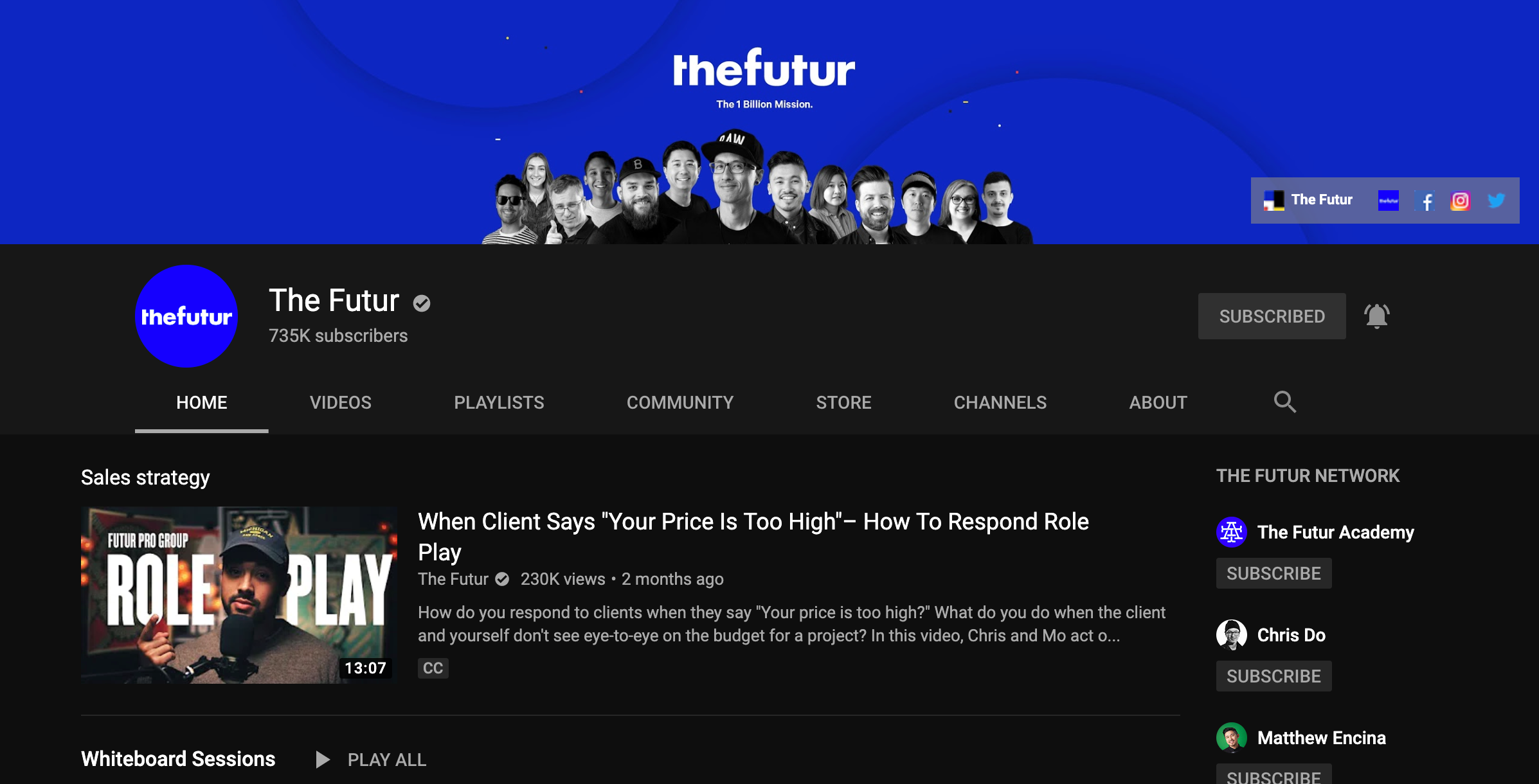
The Futur

Top Youtube channels for UI/UX designers

https://www.youtube.com/user/TheSkoolRocks

The Futur comes to delivering rock-solid information on Branding, UX, Freelancing, education, design, business, learning and Graphic Design content.

[divider style=”solid” top=”20″ bottom=”20″]

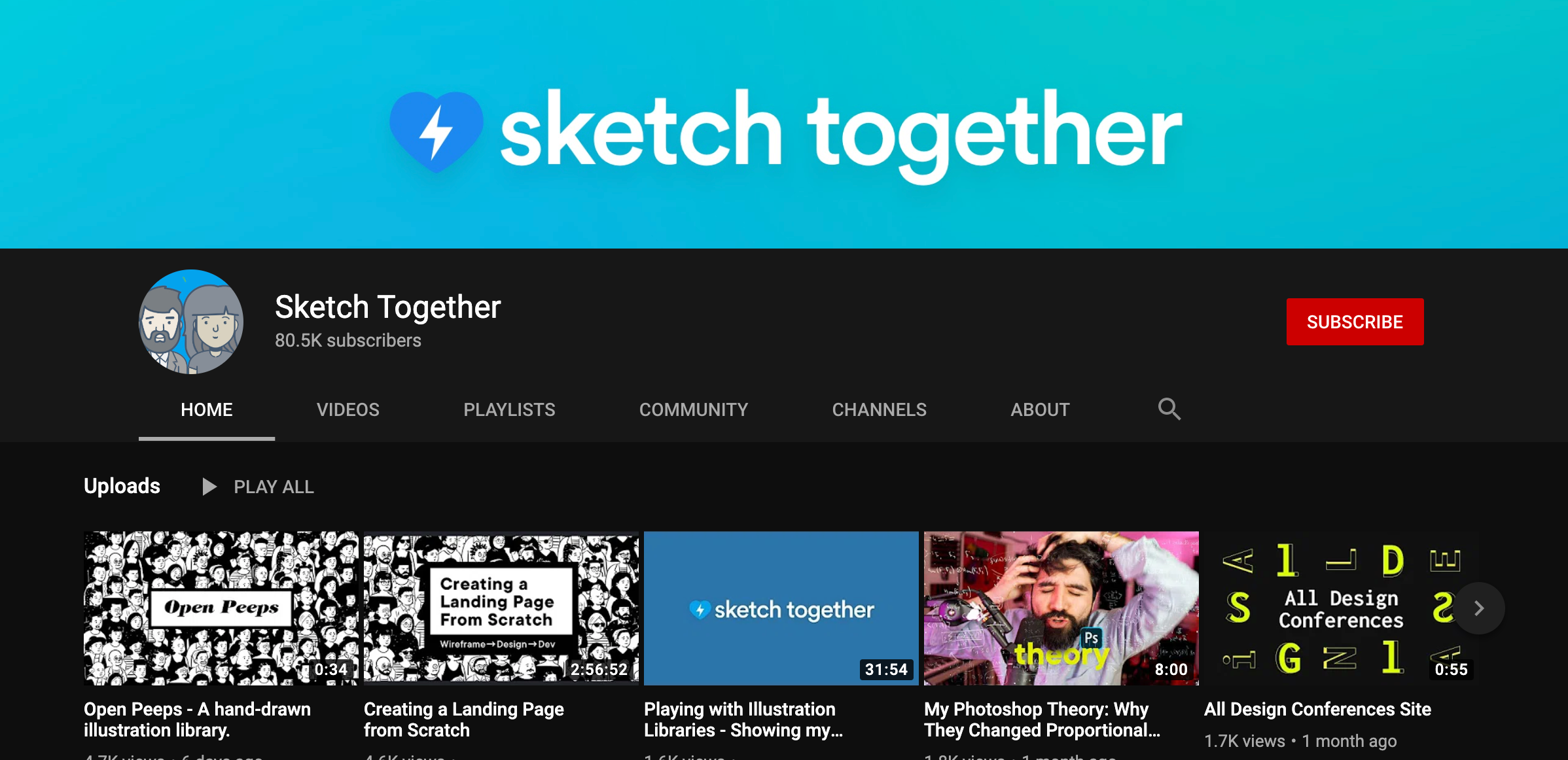
Sketch together 

Top Youtube channels for UI/UX designers

https://www.youtube.com/channel/UCZHkx_OyRXHb1D3XTqOidRw 

A channel dedicated to all things related to User Experience and User Interface design.

[divider style=”solid” top=”20″ bottom=”20″]

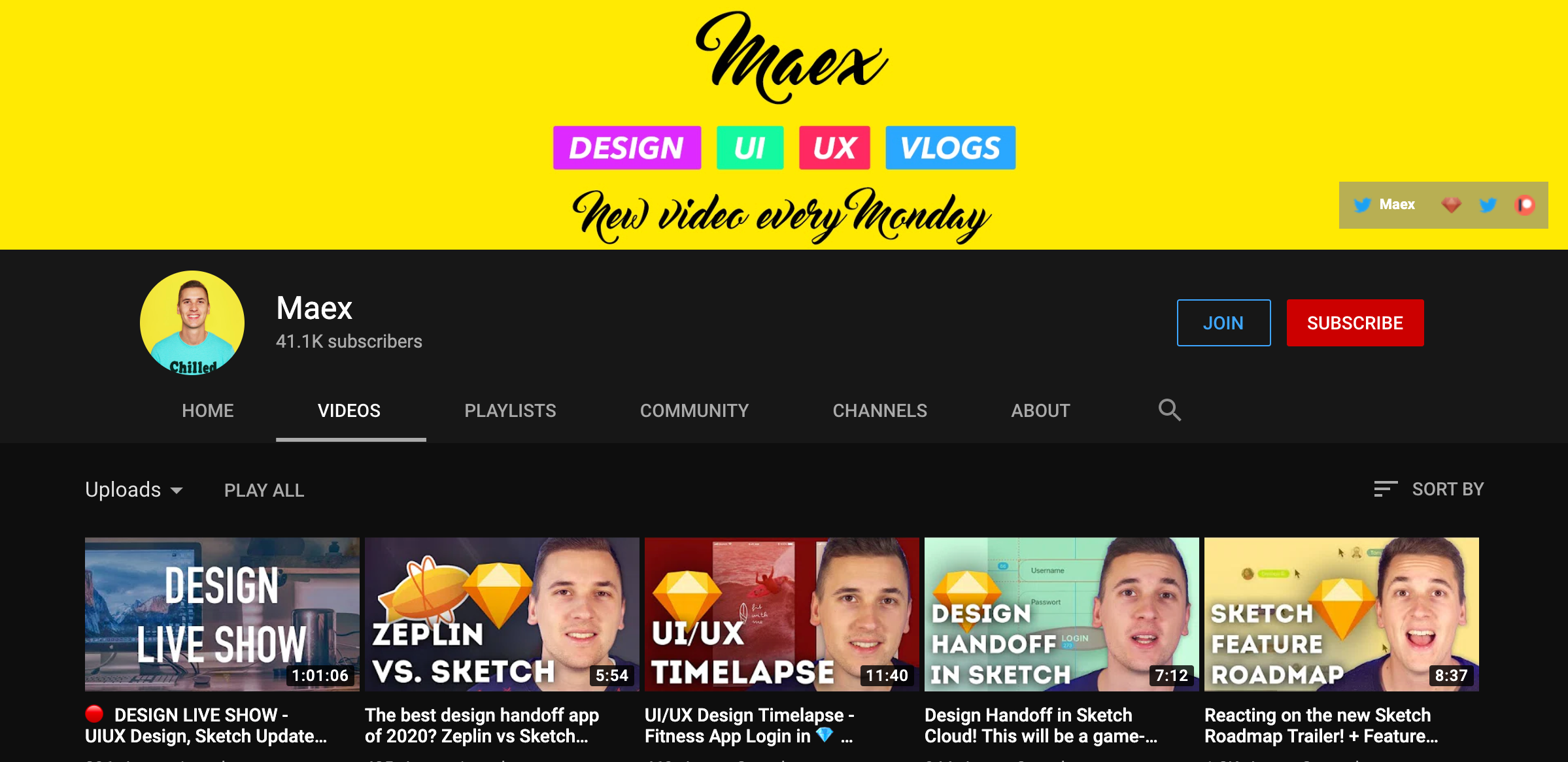
Maex 

Top Youtube channels for UI/UX designers

https://www.youtube.com/channel/UCSdp5logiFTM3SyLJrHabOQ/videos 

This channel create tutorials about Sketch, Adobe XD, InVision, Marvel & Principle and all the other UI/UX tools out there.

[divider style=”solid” top=”20″ bottom=”20″]

Flux 

Top Youtube channels for UI/UX designers

https://www.youtube.com/channel/UCN7dywl5wDxTu1RM3eJ_h9Q/videos

Flux is the personal vlog of Ran Segall, a designer, and an entrepreneur. He shares his journey, struggles and lessons he learned as he builds his career as a designer and a business owner. 

[divider style=”solid” top=”20″ bottom=”20″]

Laith Wallace

Top Youtube channels for UI/UX designers

https://www.youtube.com/channel/UCnpdR3kXJgs2y8o_PNddZxQ/videos

On Laith Wallace channel, he focuses on advice, tools, and motivation to UX/UI Design students, small businesses and people looking to start a career in UX who want to understand their users even better.

[divider style=”solid” top=”20″ bottom=”20″]

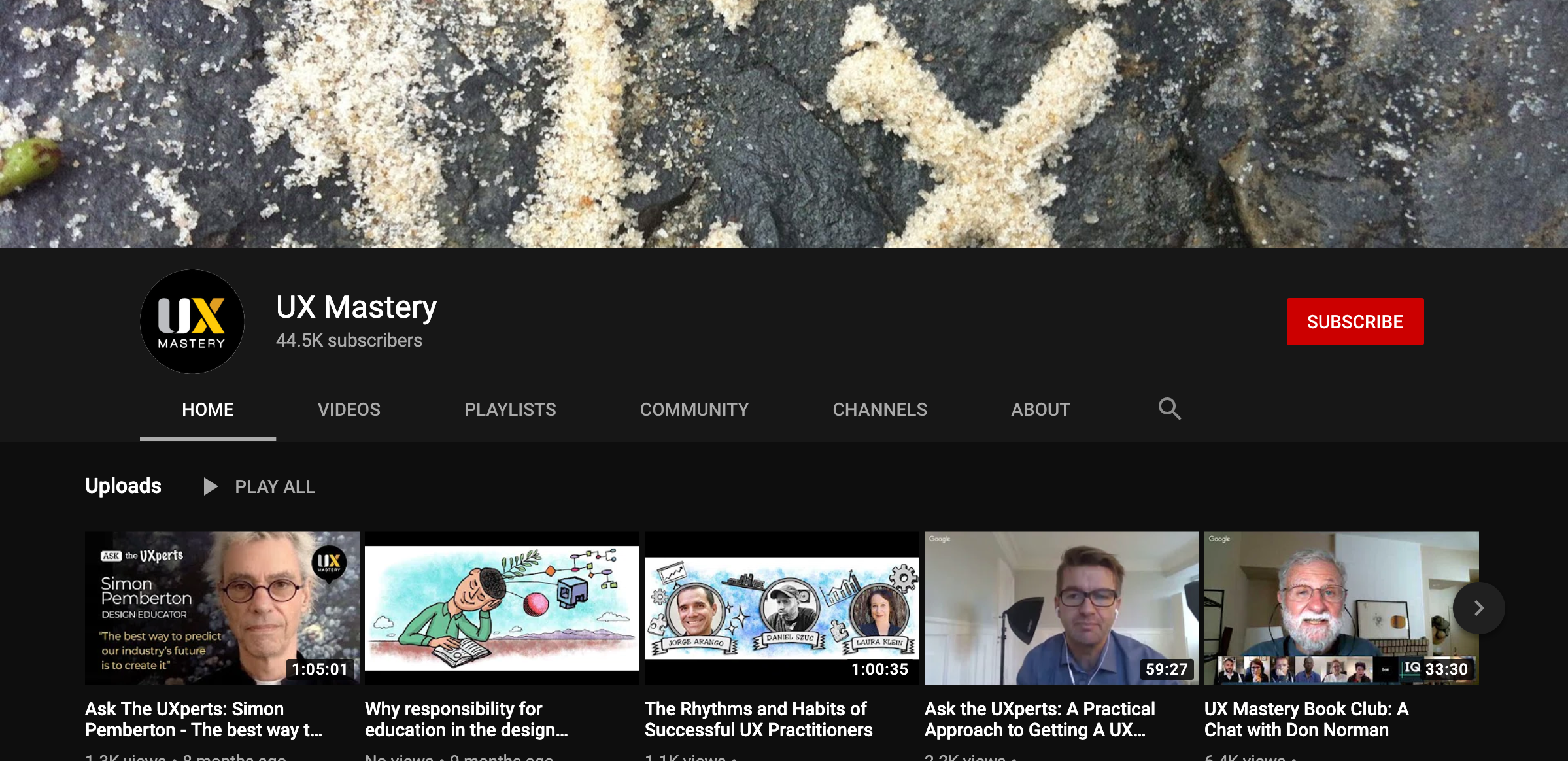
UX Mastery

Top Youtube channels for UI/UX designers

https://www.youtube.com/user/uxmastery

This channel focuses on user experience (UX) and human-centred design (HCD). They cover everything under the UX umbrella—usability, user interface design, interaction design, design thinking, and more.

[divider style=”solid” top=”20″ bottom=”20″]

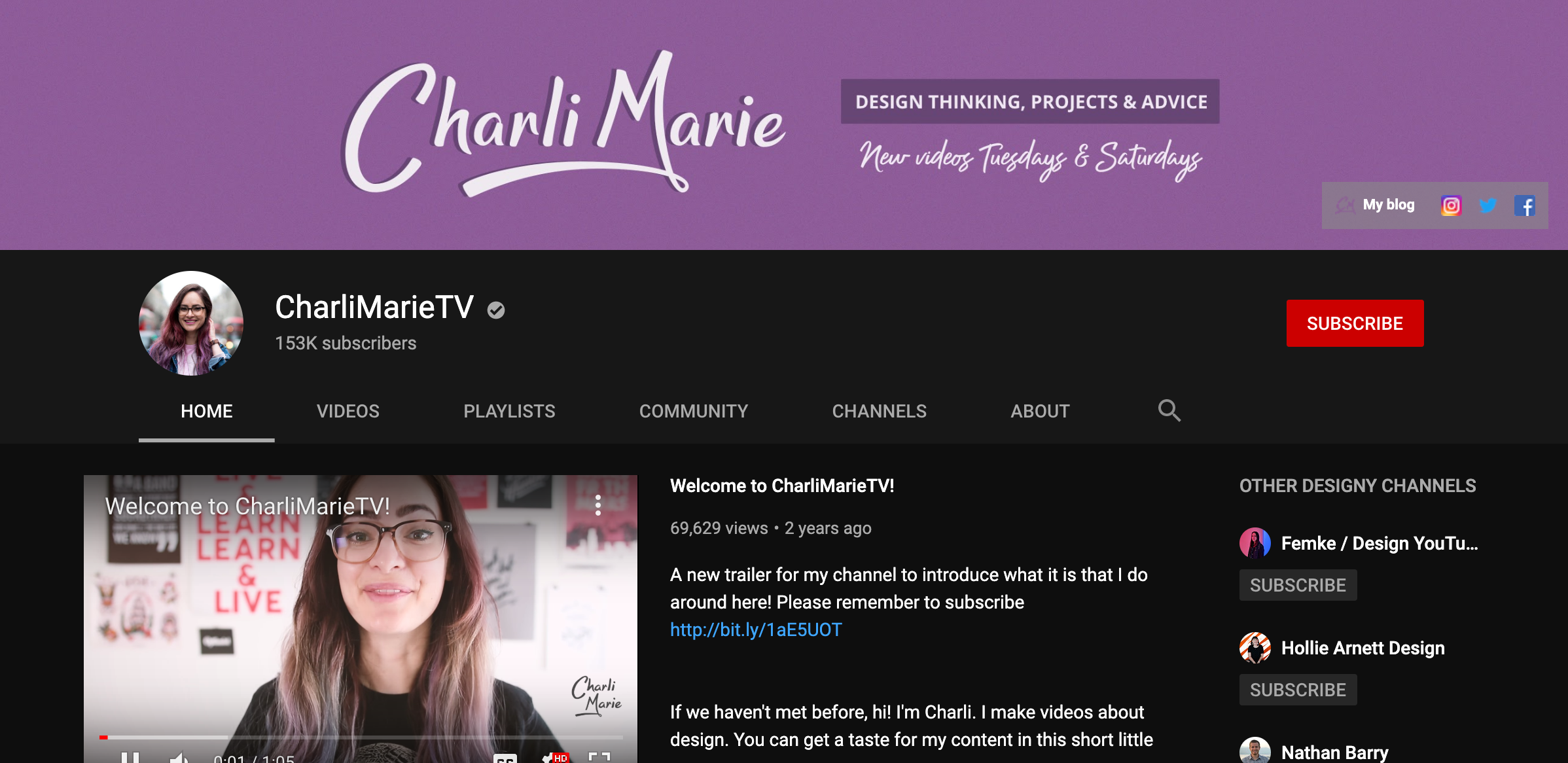
Charli Marie

Top Youtube channels for UI/UX designers

https://www.youtube.com/user/charlimarieTV

Her channel has great content about web design, graphic design, her processes and yes, Bullet journaling too. She also posts videos on projects and concepts and vlogs about her life as a designer.

[divider style=”solid” top=”20″ bottom=”20″]

Aj&Smart 

Top Youtube channels for UI/UX designers

https://www.youtube.com/channel/UCeB_OpLspKJGiKv1CYkWFFw/videos

This channel upload new videos every week about product design, ux design, design sprints and a whole lot more! For regular design content, design.

[divider style=”solid” top=”20″ bottom=”20″]

More Updates IG : Gurdeep Osahan , Ask Bootstrap

Thanks 🙂

Posted on — 2 Comments

Top 6 AI Tools for Designers

Top 6 AI Tools for Designers


Visual Eyes

www.visualeyes.design

An Al-powered Attention Map, Areas of Interest, Clarity Score, Clarity Maps, etc.

[divider style=”solid” top=”20″ bottom=”20″]

This Person Doesn’t Exist 

www.thispersondoesnotexist.com

Generate Royalty-Free Al-generated people’s faces. This can also be downloaded as a sketch plugin.

[divider style=”solid” top=”20″ bottom=”20″]

Colormind 

www.colormind.io

Colormind is a color scheme generator that uses deep learning. Different datasets are loaded each day.

[divider style=”solid” top=”20″ bottom=”20″]

Fronty 

www.fronty.com

In one click using Al-convert image to HTML, generate front-end code-based on your design.

[divider style=”solid” top=”20″ bottom=”20″]

FontJoy 

www.fontjoy.com

Font pairing made simple, Generate font combinations with deep learning.

[divider style=”solid” top=”20″ bottom=”20″]

RemoveBg 

www.remove.bg

Remove Image backgrounds 100% automatically and Free.

[divider style=”solid” top=”20″ bottom=”20″]

IG : Gurdeep Osahan , Ask Bootstrap

Thanks 🙂

Posted on

100 sources of free stock images for your templates, videos and websites

100-sites-for-free-photos-cover

Images are great ways to express feelings. Visualizing ideas is very effective to gain more user engagement. But finding the appropriate image is not so easy. There are copyright issues as well. But don’t worry, lots of free images are available across the web. In this post, I’ll present 100 sources where you will find free graphic contents.

1. Canva

Canva offers millions of graphic-design resources including both free and premium ones. It has drag-and-drop tools with access to images and fonts to create graphic pieces online. The service is used by professionals and non-designers as well. Registration required to use Canva.

2. Freeimages.com

As the name suggests, freeimages.com hosts over 390,162 free photos and illustrations. You can search and find lots of free images along with a bigger collection (2.4 million+) of premium titles. You need to register there to download images.

3. Pixabay.com

Pixabay offers more than 430,000 royalty free high quality photos, illustrations and art pieces. You can browse and download those images without any registration.

4. Freerange Stock

Freerance Stock provides high resolution free-to-use photos along with an option to discover and download premium photographs. You can use their free images with or without crediting the source. Sign-in needed to download images from this site.

5. Dreamstime

Dreamstime has a reasonably good number of categories containing lots of free images. Downloading images from this site requires a free account registration.

6. Freephotos Bank

This site showcases its collections in some general categories such as Newest Photos, Popular Photos, Nature etc. You can download images from Freephotos Bank without registering an account there.

7. Image Free

ImageFree.com has both free and paid images. You can browse their ready-made gallery or search photos by keywords. Downloading files from here requires an account with the site.

8. IM Creator

IM Creator is a web resource provider offering images, templates, design and development services. You can download their free photos anytime without having to login.

9. Morgue File

Morguefile.com has 359,836+ free photos categorized by Popular, Recent, Last downloaded and Most downlaods. There are also premium photos available from $0.15. Free images can be downloaded anonymously, I mean no sign-in required.

10. Public Domain Pictures

PublicDomainPictures.net displays free ‘Public Domain’ images. There are premium downloads as well. You can easily browse, search and download images from here without opening an account with the site.

11. Stock Vault

StockVault.net hosts 59,000 free photos which can be searched and downloaded without paying them a dime. Downloading an image from here doesn’t need to login.

12. Public Domain Photos

Public-Domain-Photos.com offers 8000 free stock photos and clip arts licensed under Public Domain. You can download photos from here by browsing categories or searching with keywords- no registration needed.

13. FreeMedia Goo

FreeMediaGoo.com hosts free background photos, stock photos and textures. There are not so many photos, though. You can browse and download images here without any registration.

14. Picjumbo

Picjumbo.com has a quite good collection of free photos for personal and commercial use. The site doesn’t require you sign-up to download free titles. There are premium services as well.

15. Unsplash

On Unsplash.com, you can find high resolution photos for free and “do whatever you want”. There is no need of a registration. Just browse, search, find and download items.

16. Death to the Stock Photo

DeathToTheStockPhoto.com works in a bit different way than other similar services. You need to subscribe to their mailing list to get their pictures in batches. There are both free and premium options.

17. Rgb Stock

RgbStock.com says on their About page that they want to create the web’s best free stock photograph site. You can browse photos by categories and look in their collection using the search tool. Downloading photos requires registration.

18. Upicm

Upicm offers several categories of free images where you can just browse and download photos- no registration needed to get free titles from this site.

19. Stokpic

Stokpic.com provides almost everything what you would expect from a free-image website. You can browse, search and download free images without signing-up there. And yes, there is a premium membership as well.

20. Bigfoto

Bigfoto.com was founded back in 2000 to provide internet users with large-sized digital photos. And they are really doing this. You can download royalti-free high-res images from this site without having an account.

21. Travel Coffee Book

As the name suggests, TravelCoffeeBook.com hosts beautiful travel photos downalable for free and usable in commercial/personal purposes. Just visit the site and save/download photos. No registration needed.

22.  Superfamous Studios

Superfamous Studios provides images under Creative Commons 3.0 license that means you can use their photos for free with crediting them. I didn’t find any search option on the website. Just browse images and download/save files- no login required.

23.  Stock Photos

StockPhotos.io has 27,000+ high quality photos offered free for commercial use. The site says that users must give proper credits to the image author. You can download photos from here without creating an account with the site.

24. Gratisography

This website showcases high quality free photos available to browse by categories or search with keywords. Downloading an image is just a matter of mouse click, that means you don’t need to login to get a piece you like. These images are licensed under CC Zero.

25. Little Visuals

This site showcases images on its website and also sends 7 high-res free photos weekly if you subscribe to their mailing list.

26. Pickup Image

Pickup Image provides free, public domain photos with categorical browsing and search options. Opening a high-res photo doesn’t need an account with the site, but if you want to download them, register there.

27. SplitShire

Splitshire brings free stock images with no copyright restrictions. Just browse/search images and download whichever you like. No sign-in required to download.

28. Stock Pholio

Stockpholio.net puts a big search bar in the middle of the website where you need to enter your photo-keyword and search for a match. You wouldn’t need to create an account with the site to download photos via them, but some of its titles require you to give credits to the author(s).

29. Snapwire Snaps

Snapwire Snaps is a Tumblr based blog offers free images on its site which are downloadable in one click. If you subscribe to their email newsletter, you will receive 7 new free photos per week.

30. Skitter Photo

This website is very clear and frank about its contents. All the images you find there are free and licensed under CC0, that means those have no copyright restriction. Crediting is not necessary for their contents, but appreciated. Browse, search and download photos fast. No registration needed.

31. Ultra HD Wallpapers

Ultra HD Wallpapers offers free stock photos for personal/commercial use. Users can download those high quality photos without creating account on this site.

32. FreeFoto.com

FreeFoto.com has around 132,549 images organized into 183 sections and 3640 categories. You can use their images for free but crediting and link back is necessary. Submitting an email address is required to download images from here.

33. Digital Dreamer

This site offers royalty free images and doesn’t ask a link back or credit. Just go and save images- no sign-in required.

34. PD Photo

Pdphoto.org is a good place to find free images for your website, social media or blog posts. You can get photos from here without registering an account.

35. Photo Pin

Photo Pin lets you search and download millions of free photos. No sign-up required.

36. Cepolina

Cepolina offers more than 20,000 free photos that can be downloaded for private and commercial uses. No sign-up required.

37. Turbo Photo

This website lets you browse, search and download free images. No sign-up required.

38. Studio25

Studio25 has a reasonably good collection of free photos, but you need to sign-up to get them.

39. Pexels

Pexels is a beautiful site that provides free photos without forcing users to sign-up. Just browse, search and download.

40. Photo Everywhere

This site has high-res photos of several beautiful locations. You can download images on this site without having an account with them.

41. Moveast

Moveast showcases high resolution free CC0 photos. There are diverse categories and you can download them instantly. No login required.

42. Fontplay

Fontplay.com provides photos taken by its founder and volunteers. Vitis this site to browse, search and save photos in your device. No login needed.

43. Every Stock Photo

Every Stock Photo has a nice collection of nature and landscape photos. Visit the site and grab them now. No sign-up is mandatory.

44. MMT

Mmt.li provides free high quality photos for personal or commercial uses. You will get mainly nature, food and daily life related photos on this site. Just browse and download- no login required.

45. Deviant Art

Like many other similar image sites, this one also offers free photos and doesn’t require users to sign up to enjoy their free service.

46. Magdeleine

Magdeleine showcases beautiful and inspirational photos those can be collected without opening an account there.

47. Life of Pix 

The site has a nice collection of free high-res photos usable in your  personal and commercial purposes. No registration needed.

48. Image Finder

This website is a search tool that lets you discover images by keywords. Just search and find. The service is usable without an account.

49. Image Base

Image Base is a beautifully organized website that provides free stock images. Visit the site, browse and download titles. No registration required.

50. ISO Republic

ISO Republic has lots of high resolution photos downloadable and usable for free without signing-up there. The site doesn’t ask for a credit, but it appreciates that.

51. Good Free Photos

This site hosts public domain photos which you can use for free. No registration needed. If you credit them, that is appreciated.

52. Geek Philosopher 

Geek Philosopher is a free source of stock images. Visit the site and download photos. No registration required, but you need to credit them with backlink.

53. Photober

Photober offers free high-res stock photos for personal and commercial use. No signup is required to download images from here, but you need to give them credit.

54. Finda.Photo

This site offers categorical browsing and search with keyword/color. Using FindA.Photo doesn’t need to sign-up.

55. Epic Antus

Epicantus is a Tumblr site where the author uploads new high-res photos every week. All of them are free to use. Just visit and save images from there.

56. Designers Pics

DesignersPics offers eye-catching photographs for free. You can use them for personal or commercial uses. Sign-up or attribution is not necessary.

57. Albumarium

Find and share images on Albumarium. You wouldn’t need to sign-up to download photos.

58. Car Pictures

Yes, you assumed it right. Carpictures.com deals with vehicles. If you need car images, then visit this site and look for the right one. Saving an image doesn’t need a registration.

59. CG Textures

This website provides backgrounds and effects for artists, designers, game developers and other design professionals. Login is necessary to download photos from this site.

60. Animal Photos

The site title is self explanatory. Yes, here you can find free images of lots of creatures. Downloading doesn’t need a sign-up. Browse and save.

61. Realistic Shots

Realistic Shots uploads 7 new photos every week which are free to use. Sign-up is not necessary.

62. Minimography

Minimography provides nature and lifestyle related photos for free. Browse, search and download photos to use in personal or commercial purposes. No sign-up or attribution required.

63. Texturer

This website offers textures, backgrounds and other graphic resources for designers. You can use these contents for free, no registration required.

64. Free Stock Textures

It’s another site for designers. From the title you should realize that the author provides free contents. And the provider doesn’t force you sign-up to download images.

65. Openphoto.net

OpenPhoto.net offers diverse categories of photos for free. They don’t require you to sign-up to use those contents, but you must credit them properly.

66. Photl

Photl.com has both free and premium offers for its contents. You can download HD quality photos for free, but bigger resolution will cost money. Sign-in required.

67. Abstract Influence

Abstract Influence offers free images downloadable without any login. There is a forum as well. You can upload photos on this site.

68. NYC Pictures

This site is dedicated to share photographs of New York City. You can use them for free by crediting the author. No sign-up required.

69. Free Downloads

This site has a stunning browsing and searching interface. You can download free images from here without creating an account with them.

70. Freepik

Freepik showcases lots of free images with CC license. Sign-up may or may not be necessary depending on the download source.

71. Bossfight

Bossfight has a rich collection of free stock photos grouped into several commonly used categories. Browse and download photos easily. No sign-up needed.

72. Fancy Crave

Fancy Crave is another website useful to designers and publishers for their graphic needs. Users don’t need an account to download free contents from this site.

73. JE Shoots

JE Shoots offers beautiful high resolution images for personal or business uses, but you need to ‘Like’ them on Facebook to activate the ‘Download’ button.

74. Splashbase

Splashbase hosts free and high quality photos and videos. The site doesn’t require users to create account on the site. So visit and save stuffs you need.

75. ABS Freepic

ABS Freepic hosts CC0 stock photos which are searchable and downloadable without having an account with the site.

76. Jay Mantri

This Tumblr blog uploads images under CC0 license that means you can use them in personal or business purposes for free. No sign-up or crediting is necessary.

77. Photo Stock Editor

Photo Stock Editor site gets new photos every week. These images are usable in personal or business uses except direct selling. Download photos from the site right away. No registration needed.

78. LibreShot

LibreShot provides free images for your projects and they don’t ask any attribution. No sign-in required to download a photo from here.

79. Foodies Feed

This site hosts food related photos and you can download them free without opening an account there.

80. Free Nature Stock

Need nature related photos? Get them free (CC0) on this site. No registration needed. Go and save.

81. Kaboom Pics

Basically, Kaboom Pics offers lifestyle related photographs usable for free. Just visit the site and download which one you need. No login required.

82. Bara Art

This website hosts diverse categories of photos you may find suitable for your design or publishing projects. Download them right away and use for free.

83. Image Temple

Image temple doesn’t offer a big deal of photos, yet the site is worth trying because it has some beautiful nature images. And you can download them free without any registration.

84. Stick Stock Photos

This site has a great collection of stunning images organized into several groups. Downloading doesn’t require a sign-up. License varies by image. See while downloading.

85. Free Pixels

The title is self explanatory. Free Pixels offers free photos for personal or commercial use. Downloading doesn’t need an account with the site.

86. Public Domain Archive

The website title is self-explanatory. It gathers and showcases public domain images from around the web. Visit the site and save images free on your device. No sign-up required.

87. Lock and Stock Photos

Lock and Stock Photos offers free CC0 images usable without any attribution. Go and download photos, no registration needed.

88. Kave Wall

Kave Wall hosts free CC2.5 photos that means you need to credit the source to use those images. Downloading free images doesn’t need any sign-up.

89. TinEye

TinEye is an image search engine that finds photos using a sample photo upload or a link to the target image. I tried to search with a keyword, but the site denied. Try this tool today!

90. Wylio

Wylio offers more than 100 million photos to search, browse and download. The site wants you to create an account with them to access their database.

91. Creativity 103

This website provides free textures, backgrounds and art pieces to inspire designers. Download these resources without having to create an account there.

92. Bajstock

Bajstock provides free original photos for your personal or commercial projects. Just visit the site and download images. No sign-up required.

93. Free Photo Frames

This site deals with photo frames. Just browse and save those frames and give your photos a legacy look.

94. Stock Media

Stock Media is another site that provides lots of free photos in return of an attribution. Just visit the site and save images. No login required.

95. Unprofound

This site lets you download free images for free and use them without an attribution. No sign-up required.

96. Photo Collections

Photo Collections is a beautiful site that displays images in a grid layout and offers them free to use in personal and business projects. No sign-up required to download files from here.

97. Startup Stock Photos 

This site gives high-res photos with CC0 license that means you get free contents to use without any attribution, though crediting is appreciated. No login required.

98. Made in Moments

If you need free travel and food related photos, visit Made in Moments. Hope you will get some good titles.

99. Streetwill

Streetwill hosts a big deal of travel, lifestyle and food photographs free to use under CC1.0. Visit the site and save what you need.

100. Stock Snap

Stock snap is a beautiful site with lots of high-res CC0 photos that can be downloaded without registering with them. Search, browse and save.

101. Pikwizard

They have 100,000+ free images on the site. More than 20,000 of those are exclusive to Pikwizard. They are also adding new images to the library daily and their goal is to get to more than 1 million images.

Conclusion

In this post, I’ve tried to gather the best 100 sites providing free images. Some sites require attribution while others don’t. Please read the specific provider’s license terms before using any free content in your project. Thank you for reading.

Posted on — Leave a comment

Web development on Chrome OS

Web development on Chrome OS

This talk demonstrates how in a few clicks you can get a full web development environment up and running on Chrome OS, including how to do cross-browser testing! 🙂

Transcript

Hi. I’m Emilie Roberts, a developer advocate with Chrome OS developer relations. Today, I’m going to talk about web development on Chromebooks. Here is a quote from you, a skilled web developer. “Chromebooks are awesome.” And if you don’t remember saying this recently, I hope that after watching this video, it will become a daily thing. Chromebooks are known for being lightweight, fast, secure web browsing machines. They are so much more. The device portfolio has grown to include tablets, detachables, all-in-one, mini desktops, and of course, laptops and convertibles. Many of these are capable development devices. So what can you run on them? Well, IDEs like Visual Studio Code, Atom, WebStorm, tools like Node, React, Docker, and Git, and you can test your web apps with multiple browsers, including real mobile browsers. As well, you can check how your mobile app interacts with your web server, all right on the same device. OK. Let’s get started and get your Chrome OS device ready for development. We are going to set up a Linux environment and then install the tools you need. To start, open Chrome settings and search or scroll down to Linux. Click Turn on. This will download and setup a Linux environment. When it’s complete, you’ll see a terminal prompt. Pro tip– if you will be doing a lot of development, pin the Terminal by right-clicking and choosing Pin. Now we have a Linux environment. Let’s install some tools. Head over to the Visual Studio Code website and download the Linux.deb package. Double-click and choose Install. Once it’s installed, you can find VS Code in your App Launcher. If you’re going to be using this IDE a lot, you can pin it like we did with the Terminal. Any application with a .deb package can be installed in a similar way. Let’s install Atom. The process is exactly the same– download, install, and launch. Not every app has a .deb package, but you can install any of your favorite tools that support Debian Linux. For example, to install Sublime Text, follow the Linux instructions on the website to set up the APT repo and install the editor using the command line. When we install Node in a few seconds, we’ll take a closer look at command line installation. And the same thing goes for apps like WebStorm. Just go to the website, follow the Linux download and install instructions. I won’t do WebStorm right now. Let’s get right on to the server side of things. Oh, and by the way, at the end of this video, I will direct you to a page by the Chrome OS DevRel team with installation instructions for all the apps and more discussed in this video. Now, beyond what I mention today in this video, if your favorite tool is supported in Linux, it should run on Chromebooks. For example, I like gedit for text editing, FileZilla as an FTP client, and Inkscape for vector graphics editing. Today, web development usually takes more than a text editor, an IDE, or an FTP client. Let’s get to some other tools so we can make some really nice web apps. Node.js requires gnupg2. Open up your Terminal and install it with apt. That command is sudo apt install gnupg2. If you’re new to apt, you can probably guess that by replacing gnupg2 with whatever package name you want, it will install that package. Now, finding the right package name can sometimes be the tricky part. Note, as we continue with this video and other terminal commands, I won’t read every line out loud. But as mentioned, I will provide a link at the end that has them all. Now that the dependency is installed, let’s get Node.js. Run this cURL command followed by another apt install command for node. That’s it. Node.js is ready to go. Don’t believe me? Well, let’s try it out with PROXX. Use git to clone the PROXX repo and NPM to install, build, and serve the PROXX web app. Navigate to localhost:8080 in your web browser and check it out. Pretty cool. So much minesweeping to be done. Let’s try React. Using NPM, you can install, create-react-app, then use create-react-app to create a skeleton project. Here, I call it hello-world-react. Navigate into the directory where it was created and call npm start. Now, navigate to localhost:3000 in your browser and check it out. If you prefer Angular, install that, too. The steps are almost the same. Again, we use NPM to install @angular/cli. Create an Angular app using ng new my-angular-project. Change directories into the project folder using cd, for change directory, my-angular-project. Now, in gServ, browse to localhost:4200 and check it out. Here, you’ll notice that I have PROXX, a React app, and an Angular app all running on different ports all on the same Chromebook. I think this is pretty handy. What’s more, this is all local, so as long as your tools are already installed, you could do all of your development offline– say, like on a plane. What about Docker? No problem. Again, we’re going to follow the normal Linux installation steps. First, we double-check that all the dependencies are installed. We add the Docker repository to apt, and then we update the apt package list since we just added a new repository. We use sudo apt update to do this. Then install Docker. Test it out by running hello-world. This is done with sudo docker run hello-world. You should get a nice message showing that everything is working. Let’s do something a little bit more advanced by running an Ubuntu Linux container in Docker. sudo docker run -it ubuntu bash. And there you go. Your output is going to look something like this. In the Ubuntu container, I’ve taken a look at the OS version with cat /etc/os-version and you can see, it’s really Ubuntu. Now, once an app is ready to deploy, it should be tested. Because Chromebooks have web, Android, and Linux, you can test across multiple browsers on multiple platforms all right on the same device. Let’s install a whole pile of browsers to prove this point. Using the Terminal and apt, install Firefox for Linux. Note in Debian, the package name is firefox-esr. Then let’s also install the Chromium browser for Linux. Feeling brave? Let’s install the Brave browser for Linux. I won’t walk through all of these lines right now, but again, they are just the standard installation instructions for Debian Linux. We install the GPG key, we install the repo, and finally Brave. Now, if four browsers aren’t enough, let’s add a few more. Head over to the Google Play Store and install some Android browsers. Let’s go with Firefox for Android, Opera for Android, and Chrome Beta for Android. We now have seven browsers installed, which can give us a reasonable first attempt at test coverage. We have the Chrome OS Chrome browser, three Android browsers– that is Firefox, Chrome Beta, and Opera– three Linux browsers– Firefox for Linux, Brave, and Chromium. And here you can see that our PROXX web app is running on all seven. One last thing to mention. In case you have a mobile app that interacts with your web service, you can do Android, TWA, and Flutter development on Chrome OS devices, which means you can build and package your mobile app on your Chromebook, test it right on the device you are coding on, like any other Android app, build your web component, start your web server, and then test everything on multiple browsers and see how it interacts right on the device. Android Studio is as easy to install as Visual Studio Code or Atom. Head over to the Android Studio site and download the .deb file. Then, you can code your app like you’d expect in Android Studio with one cool difference. You’ll notice that you can push directly to the Chromebook you’re working on. Pretty cool. Full instructions on how to set this up can be found on the link at the end of this video on the Android page. So with your Chromebook, you can build web apps with the tools you are used to, develop and test right on device with tools like Node.js, Docker, and Angular, test across multiple browsers, including mobile browsers, and even test mobile app and web interaction right on device. And all of this could even happen offline, like on a long flight. So now, don’t you agree Chromebooks are awesome? As promised, here is a link to a guide to get your Linux environment customized just the way you like. It’s cros.page.link/web-dev. Thank you. Can’t wait to see what you build.

Posted on — Leave a comment

6 Tools to Track Your Instagram Followers

If you are merely a casual user of Instagram, showing a few pictures with your friends, you may not see any need to track your Instagram followers, or indeed how your posts perform. However, if you take your Instagramming more seriously, you are going to want to keep a vigilant eye on your Instagram account, along with the genuineness of your followers.

This is particularly the case for influencers and brands. In both cases, the quality of their following matters very much. Ultimately brands are only in the social space to strike a dialogue with their customers and potential clients. Their work with influencers has the same overall goal. There is little point in having followers who are not part of their target market.

It is perhaps less crucial for non-commercially minded influencers. However, they, too, are unlikely to be influential with people who couldn’t care less about their posts.

Brands and influencers are also interested in the behavior of their followers. What types of posts interest them? Which topics are of little importance and get ignored?  As far as serious influencers are concerned, analytics, and data about their Instagram performance can be a godsend, and help them make more interesting and valued posts.

The following list highlights tools that, in some way, help you track your Instagram followers, and in many cases, the overall performance of your Instagram account.

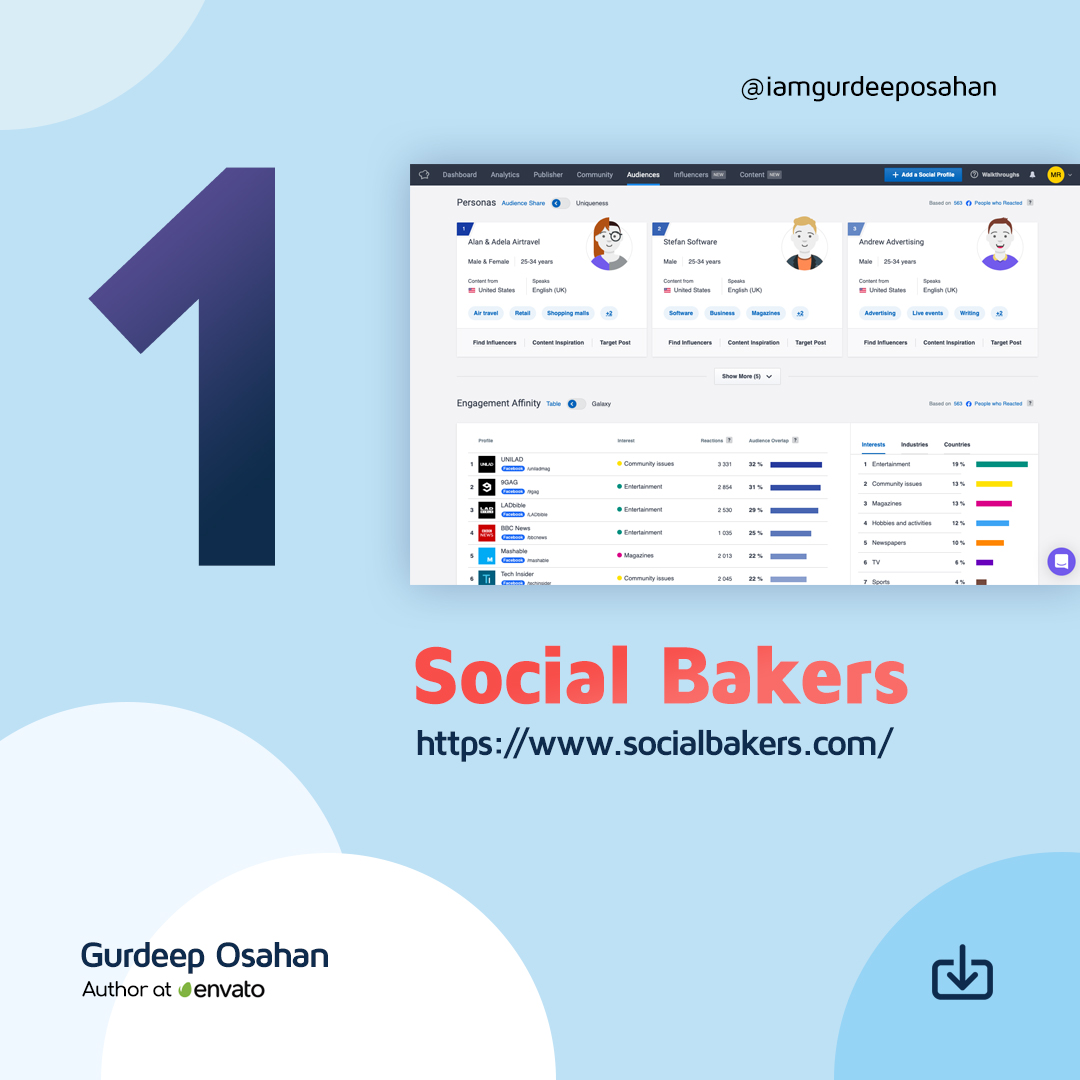
1. Social Bakers

6 Tools to Track Your Instagram Followers

6 Tools to Track Your Instagram FollowersSocial Bakers is primarily a social media management platform that you can use to manage all your marketing tasks together easier. It includes an Analytics & Benchmark section that covers everything from benchmarking, content, and performance to influencers and paid campaigns. You can use it to get the full information you need to understand your performance. It allows you to benchmark your organic, paid, video, and influencer performance metrics against industry averages or competitors.

Although not as advanced as the paid tool, Socialbakers offers a free Instagram Analytics Tool for personal and business profiles. It allows you to discover your most popular Instagram posts, track your success, and learn what gets your audience double-tapping. It shows your most popular photos, filters, and hashtags, although it only offers limited information about your followers.


2. Union Metrics

6 Tools to Track Your Instagram Followers

Union Metrics offers a free Instagram account checkup. It is of limited use to understanding your followers over time, although it provides some insights into how your account is performing currently.

The Union Metrics paid plans provide more information to marketers. The $49/mo Social Manager plan allows you to analyze engagement and measure the performance of your social accounts. With the $99/mo Social Marketer plan, you can monitor relevant conversations and generate audience insights with in-depth reporting. At the top end, you have the $199/mo Marketing Team package that offers all the analysis, monitoring, and reporting you need for comprehensive social marketing.

You can use Union Metrics to monitor all your social profiles to learn precisely how your content performs. It will show you what content works across social media – and what doesn’t, and when your audience is most receptive to find the best time to post.


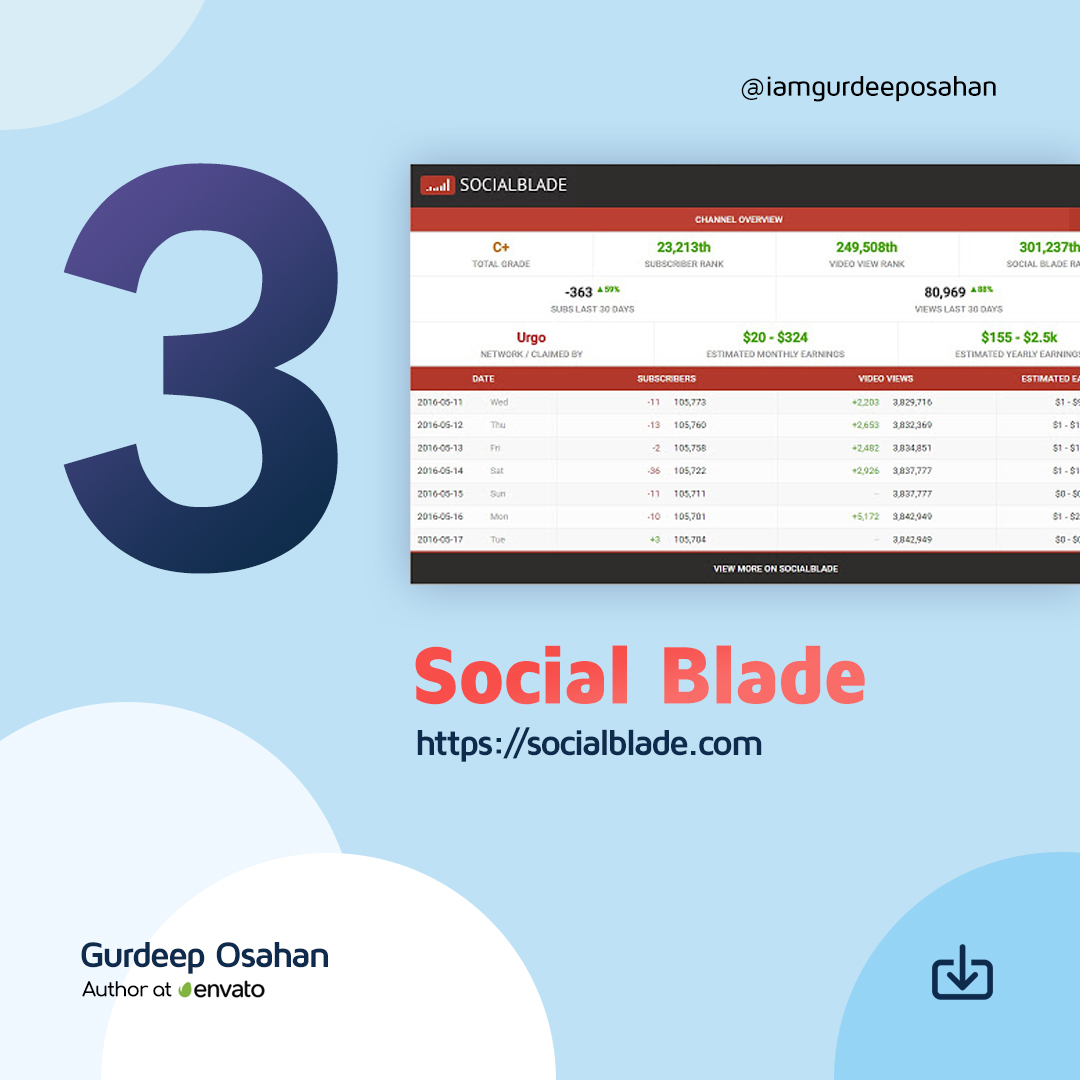
3. Social Blade

6 Tools to Track Your Instagram Followers

Social Blade provides a wealth of stats on public Instagram media accounts. They pull data explicitly from your public profile, so you won’t find anything if you have made your account Private – but if you are a business or influencer, it makes no sense to have a Private account.

For future projections, you do need to provide them with at least two points, so you need to scan your account multiple times over time if you want to build a set of useful data.

Social Blade also shows quite a few interesting charts about the top Instagram accounts, such as the Top 50 (and 100) Followed Instagram Users. They do emphasize that they are using the new Instagram API, so they can only get data on Instagram business/creator accounts.


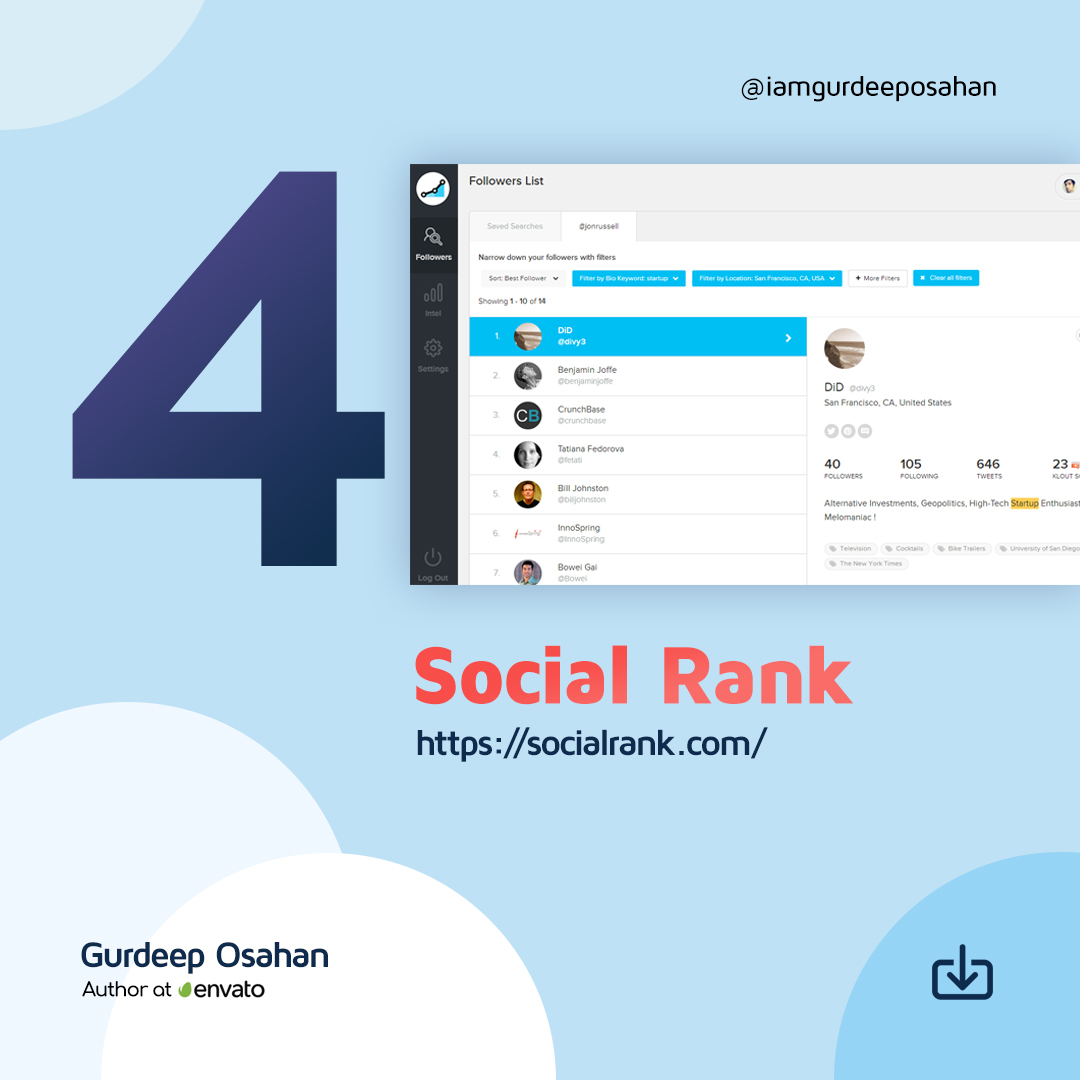
4. Social Rank

6 Tools to Track Your Instagram Followers

You can use SocialRank to discover detailed audience metrics for Instagram, as well as Twitter. You can segment your audience by using various sorting and filtering options. You can create custom lists, export the data to PDF, and run campaigns.

You can sort your audience by Most Valuable (your most influential profiles), Most Engaged (determined by the frequency of engagement), Best Followers (a combination of Most Valuable and Most Engaged), Most Followed, Alphabetized and Chronological (Newest and Oldest). You can also filter and pinpoint your audience by filters ranging from bio keyword, word/hashtag search, and geographic location, to verified number of followers, activity, and more.


5. Iconosquare

6 Tools to Track Your Instagram Followers

Iconsquare offers both free and paid tools that help you track your Instagram followers. Their free tool provides an Instant Instagram Audit. All you have to do is to connect your Instagram account and enter your email address. They will then send you a free report that tells you where you’re shining and where you’re falling flat. Instagram Audit analyzes 20+ metrics on your latest 30 posts over the last 30 days. It provides tips on your account activity, audience engagement, account settings, and content strategy.

The paid version of Iconsquare offers a robust analytics, management, and scheduling platform for brands and agencies. A customized dashboard quickly visualizes the metrics most important to you, and scheduled reports help you stay on top of your game. Graphs display your performance for metrics like follower evolution, average engagement rate per post, and reach and impressions history. Benchmarks for over 100 industries allow you to compare your performance using metrics like follower growth, engagement, and reach. It includes community analytics, so you can understand where your followers are, the languages they speak, and their age and gender.

A recent addition allows you to understand how your Instagram promoted posts impacted your performance across metrics like reach, engagement, impressions, follower growth, and more.


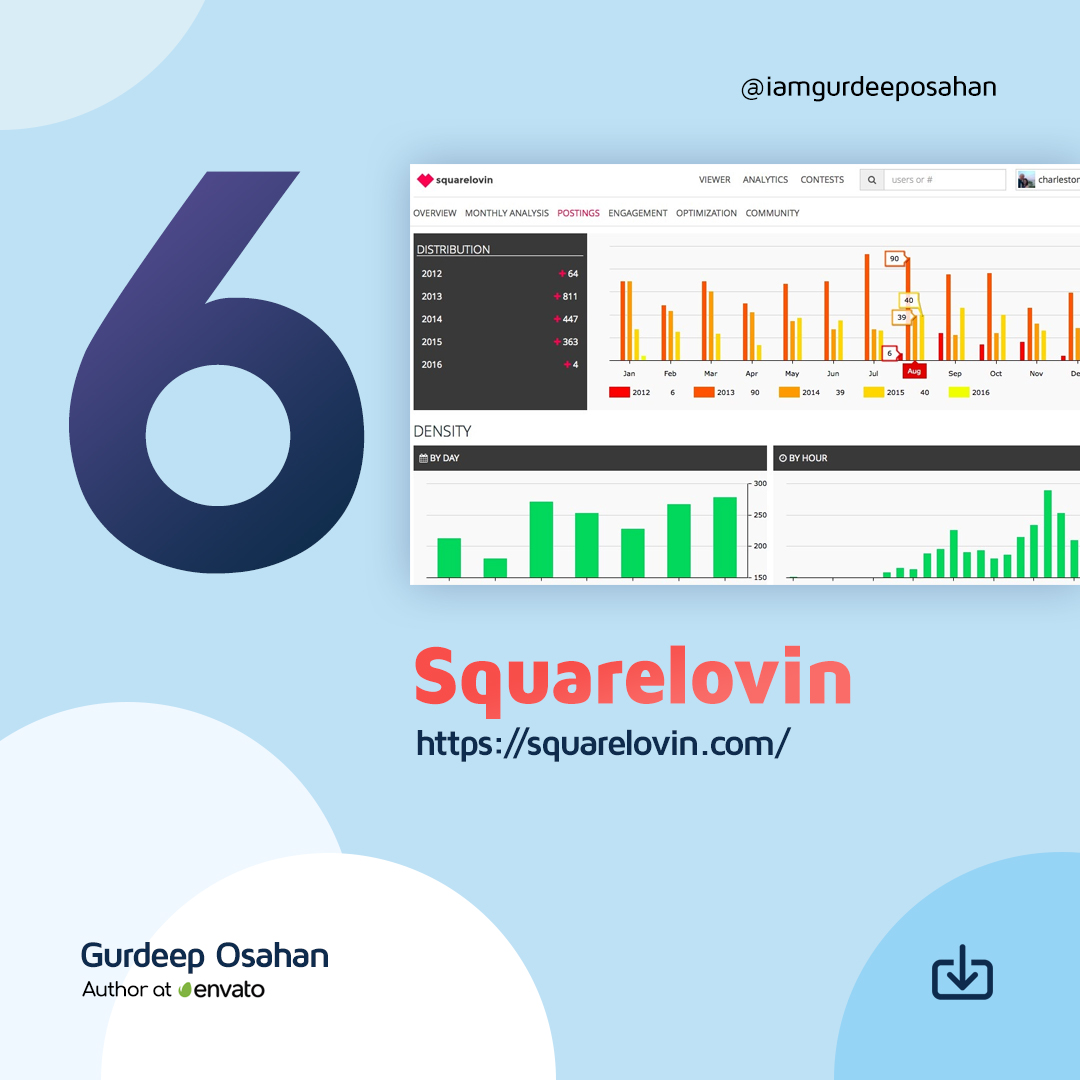
6. Squarelovin

6 Tools to Track Your Instagram Followers

Squarelovin offers a free in-depth analytics tool that gives you access to metrics on your recent posts and growth, a monthly analysis, and a history of your posts broken down into year, month, day, and hour. It provides you with more insights on your communities’ preferences and interests, and what drives engagement. Squarelovin even shows you your best and worst times to post.

6 Tools to Track Your Instagram Followers

IG : Gurdeep Osahan , Ask Bootstrap

Source :  influencermarketinghub  🙂